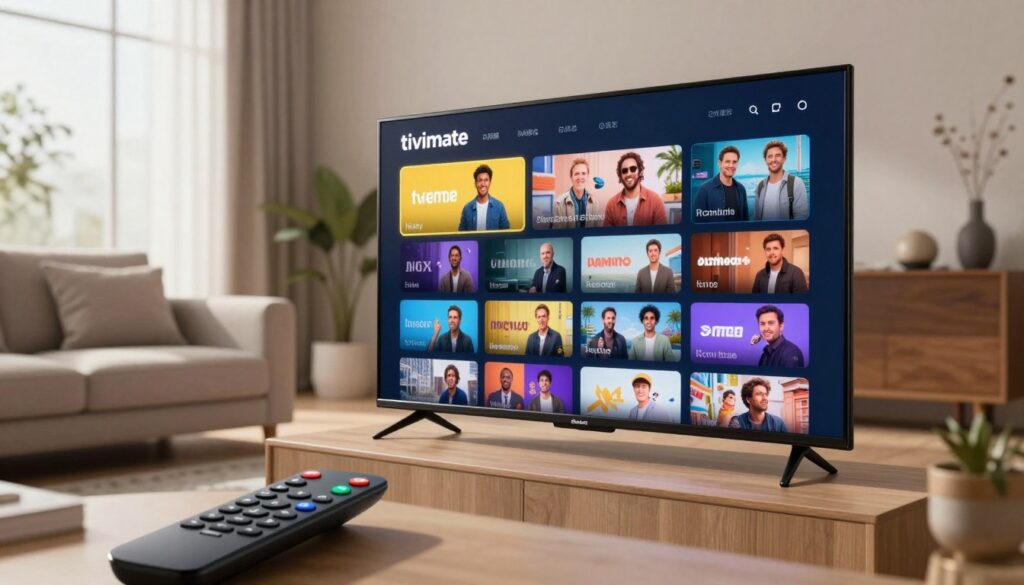
In the rapidly evolving world of digital entertainment, finding a reliable way to organise your content is essential. Tivimate has emerged as the premier IPTV media player for those who demand a seamless viewing experience on their Android TV or Firestick devices.
This powerful streaming app transforms how you interact with your chosen IPTV service. By offering advanced channel management and a highly refined user interface, it sets a new standard for modern media streaming. Whether you are configuring an M3U playlist or integrating EPG sources, the platform ensures your setup remains intuitive and efficient.
Users can easily customise TV guide layouts or utilise the Xtream Codes API for a more stable connection. With features like Catch-up TV, Picture-in-Picture, and flexible recording storage, it caters to every viewer’s needs. A premium subscription further unlocks professional tools, including detailed buffer settings and comprehensive troubleshooting options to keep your broadcast running smoothly.
Key Takeaways
- Tivimate provides a superior user interface for managing your favourite channels.
- The application supports both M3U playlist formats and Xtream Codes API integration.
- Enhance your viewing with Catch-up TV and Picture-in-Picture functionality.
- Optimise your connection stability by adjusting specific buffer settings.
- A premium subscription offers advanced features like custom recording storage.
- The platform simplifies troubleshooting for a consistent media streaming experience.
Understanding the Appeal of Tivimate
Modern viewers demand more than just basic channel access from their streaming software. As the way we consume media changes, the need for a reliable and intuitive IPTV media player has never been greater. Tivimate has emerged as a leader in this space by prioritising a clean, user-friendly design that makes digital entertainment feel effortless.

Why UK Viewers Prefer Tivimate
UK audiences often look for software that balances functionality with a polished aesthetic. Tivimate excels here by offering a highly customisable interface that allows users to organise their favourite channels exactly how they like. This streaming app provides a level of stability that is often missing from other platforms, ensuring that your viewing experience remains uninterrupted.
Many users appreciate the seamless integration of electronic programme guides, which is essential for keeping track of British television schedules. By focusing on reliability, the developers have created a tool that feels like a natural extension of a modern smart television. It is this attention to detail that keeps enthusiasts coming back to the platform.
The Evolution of IPTV Media Players
The journey of these applications has been quite remarkable over the last decade. Early versions were often clunky, basic tools that lacked the sophistication required for a modern home cinema setup. Today, the landscape has shifted toward feature-rich applications that offer advanced playback options and professional-grade organisation.
Tivimate represents the pinnacle of this evolution, transforming how we interact with digital entertainment. It has moved beyond simple video playback to become a comprehensive IPTV media player that rivals traditional cable boxes. By choosing a high-quality streaming app, you are investing in a future-proof way to enjoy your favourite content with ease.
Getting Started with Tivimate
Getting started with this application is simple once you understand the basic requirements for your device. Establishing a stable foundation is essential for a seamless streaming experience, ensuring that your hardware can handle high-definition content without interruption.
Device Compatibility and Requirements
To enjoy the full potential of this IPTV media player, your hardware must meet specific criteria. It is primarily designed for devices running the Android operating system, which makes it a perfect match for most modern streaming boxes.
If you are using an Android TV or a Firestick, you are already in a great position to begin. These devices offer the processing power and memory needed to run the interface smoothly. We recommend ensuring your device has at least 2GB of RAM to avoid any potential performance bottlenecks during heavy usage.

Downloading and Installing on Android TV and Firestick
The installation process is quite intuitive, though it requires a few specific steps to ensure everything is configured correctly. Follow this guide to get Tivimate up and running on your preferred hardware:
- Navigate to the search function on your Android TV or Firestick home screen.
- Search for the “Downloader” app and install it, as this is the most reliable method for sideloading applications.
- Open the Downloader app and enter the official URL for the Tivimate APK file.
- Once the download finishes, select the install button and grant the necessary permissions when prompted.
- After the installation is complete, you can launch the IPTV media player directly from your apps menu.
By following these steps, you ensure that your software is installed cleanly and ready for configuration. Taking the time to verify your setup now will save you from troubleshooting common hardware limitations later on.
Key Features of Tivimate
The true power of this software lies in its ability to balance complex features with a simple, clean design. It has quickly become a favourite streaming app for those who value both performance and aesthetics. By focusing on the needs of the modern viewer, the developers have created a tool that feels intuitive from the very first use.

Modern User Interface Design
The user interface is arguably the most impressive aspect of the platform. It prioritises visual clarity, ensuring that your favourite channels and programmes are always easy to find. You will notice that the layout is clean, responsive, and free from the clutter often found in other media streaming solutions.
Support for Multiple Playlists
Flexibility is at the heart of the experience, especially with robust support for multiple playlists. Users can easily aggregate content from various sources into one unified guide. This feature allows you to manage your subscriptions efficiently without needing to switch between different applications constantly.
Catch-up and Recording Functionality
Never miss a moment of your favourite shows thanks to the integrated catch-up TV and recording tools. These features provide you with total control over your viewing schedule, allowing you to watch content on your own terms. Whether you are recording a live event or accessing past broadcasts, the process remains seamless and reliable.
| Feature | Benefit | User Impact |
|---|---|---|
| Modern UI | Visual Clarity | Improved Navigation |
| Multi-Playlist | Centralisation | Better Organisation |
| Catch-up TV | Flexibility | Convenient Viewing |
| Recording | Control | Time-shifted Media |
Setting Up Your IPTV Service
Proper configuration of your streaming application ensures that all your favourite channels load perfectly every time. Taking the time to set up your IPTV service correctly prevents common errors and provides a much smoother viewing experience for your household.
Adding M3U playlists
The most common way to connect your provider is by using an M3U playlist URL. You simply navigate to the playlist section in the app settings and select the option to add a new source. Once you paste the provided link, the application will automatically fetch your channel list and categories.
Configuring Xtream Codes API
For a more integrated experience, many users prefer using the Xtream Codes API. This method is often faster and more reliable than standard playlist links. You will need to enter your server URL, username, and password provided by your service. This creates a direct link that allows the app to manage your content more efficiently.
Assigning EPG sources for accurate listings
To keep your TV guide looking professional, you must assign the correct EPG sources. Without these, your programme information will appear blank or outdated. By linking the right data, you ensure that your electronic programme guide remains accurate and up-to-date throughout the day.
| Connection Method | Setup Speed | Data Reliability | Ease of Use |
|---|---|---|---|
| M3U Playlist | Moderate | Standard | High |
| Xtream Codes API | Fast | Excellent | High |
| Local File | Slow | Manual | Low |
Customising the User Interface
Making your streaming experience truly your own is simple thanks to the extensive personalisation options available. The user interface is designed to be flexible, ensuring that you can navigate your content with ease and efficiency. By adjusting a few settings, you can transform the application into a bespoke media hub that perfectly suits your daily viewing habits.
Personalising the TV Guide Layout
The electronic programme guide is the heart of your viewing experience. You can easily customise TV guide settings to display more or fewer channels at once, depending on your screen size. Adjusting the font size and the number of visible rows helps you find your favourite programmes without unnecessary scrolling.
You may also choose to modify the time slot intervals within the guide. This flexibility ensures that you can see exactly what is airing throughout the evening at a single glance. Tailoring these visual elements makes the entire process of browsing content much more intuitive.
Adjusting Appearance and Colour Schemes
If you prefer a specific aesthetic, the application allows for deep visual modifications. You can switch between various themes to ensure the interface looks great in both bright and dim lighting conditions. Changing the accent colours helps you highlight important buttons and menu items, making navigation feel more natural.
Transparency settings are another powerful tool for those who want a modern, sleek look. By adjusting the background opacity, you can keep the interface visible while still catching a glimpse of your current stream. These small tweaks contribute significantly to a premium viewing experience.
Organising Channels and Categories
Effective channel management is essential for keeping your library tidy and accessible. You can create custom groups to separate your sports, news, and entertainment channels into logical folders. This prevents you from having to scroll through hundreds of unwanted streams to find what you actually watch.
Furthermore, you have the ability to hide channels that you never use. By reordering your categories, you ensure that your most-watched content always appears at the top of the list. Taking the time to organise your setup will drastically improve your daily interaction with the platform.
Advanced Playback and Recording Options
Unlock the true potential of your media player by fine-tuning how you watch and save your favourite content. For power users, the application offers a suite of sophisticated tools that significantly improve the overall viewing experience. These features allow you to customise your setup to match your specific lifestyle and technical requirements.
Utilising the Picture-in-Picture Mode
Multitasking has never been easier thanks to the Picture-in-Picture mode. This feature enables you to keep an eye on your favourite live sports or news programmes while navigating through other menus or settings within the app.
It is perfect for those who do not want to miss a single moment of action while managing their playlists. Simply enable this option in the playback settings to keep your content running in a small, unobtrusive window.
Managing Recording Storage and Schedules
Taking control of your recording storage is vital for maintaining a library of your preferred shows. You can easily designate specific folders or external drives to house your saved media, ensuring you never run out of space unexpectedly.
Beyond just storage, the application allows for automated scheduling. You can set your device to record upcoming broadcasts, so you never miss a series premiere or a live event. Consider these tips for effective management:
- Check your available disk space regularly to avoid failed recordings.
- Use external storage for high-definition content to save internal device memory.
- Set recurring schedules for your favourite weekly programmes.
Optimising Buffer Settings for Smooth Streaming
Even with a fast internet connection, high-traffic periods can sometimes cause interruptions. Adjusting your buffer settings is the most effective way to ensure smooth streaming without constant pauses.
By increasing the buffer size, you allow the application to pre-load more data, which helps maintain a steady stream during network fluctuations. This simple adjustment provides a much more stable and enjoyable experience for every viewer in your household.
Managing Multiple Playlists and EPGs
If you juggle several subscriptions, you know how messy your TV guide can become. Fortunately, mastering your channel management is a straightforward process that transforms your viewing experience into something truly seamless.
Merging Channels from Different Providers
You can combine content from various sources into one cohesive list. By merging your preferred M3U playlist options, you eliminate the need to switch between different apps constantly.
“Simplicity is the ultimate sophistication.”
Leonardo da Vinci
This consolidation allows you to browse your favourite programmes without jumping through hoops. It creates a unified interface where all your entertainment lives in one place.
Updating EPG Data Automatically
Keeping your programme information accurate is vital for a smooth experience. You should configure your EPG sources to refresh at regular intervals to avoid missing out on live events.
Automated updates ensure that your guide is always current. This feature saves you from manual refreshes and keeps your schedule perfectly aligned with real-time broadcasts.
| Feature | Manual Update | Automatic Update |
|---|---|---|
| Time Efficiency | Low | High |
| Data Accuracy | Variable | Consistent |
| User Effort | High | Minimal |
Filtering and Sorting Content Effectively
Effective organisation is the secret to a clutter-free interface. You can filter your channels by category, language, or country to find exactly what you want in seconds.
Sorting your M3U playlist items helps you prioritise the channels you watch most often. By refining your EPG sources, you ensure that your channel management remains tidy and efficient for every member of your household.
Troubleshooting Common Issues
Technical hiccups are an unfortunate reality of digital media, but most issues are easily resolved with the right approach. Even the most reliable streaming setups can occasionally run into technical snags that require a bit of troubleshooting to restore your service. By following a few simple steps, you can maintain a consistent and high-quality viewing environment.
“The art of troubleshooting is not just about fixing what is broken, but understanding how to prevent it from happening again.”
— Anonymous
Resolving Connection and Loading Errors
If you encounter persistent loading screens, the first step is to verify your internet connection. A stable broadband speed is vital for streaming high-definition content without interruption. Always ensure your device is connected to a strong Wi-Fi signal or, ideally, a wired Ethernet connection.
If the connection is stable, check if your IPTV provider is currently experiencing server downtime. Sometimes, simply restarting your router or clearing the application cache can resolve these connectivity hurdles. If you use a VPN, try switching to a different server location to see if that improves your access.
Fixing EPG Data Mismatches
An inaccurate TV guide can be frustrating when you are trying to plan your evening viewing. If your EPG data appears incorrect or fails to load, you should manually trigger an update within the settings menu. Refreshing your EPG sources often clears up temporary data conflicts.
Additionally, verify that your device’s system time and date settings are set to ‘Automatic’. If your local time does not match the server time, the guide will display programmes incorrectly. Ensuring your time zone is configured correctly is a key part of effective troubleshooting for EPG issues.
Handling Playback Stuttering and Audio Sync
Playback stuttering is often caused by network congestion or insufficient hardware resources. You can improve performance by adjusting the buffer settings within the player to allow for a larger data cushion. Turning on hardware acceleration can also help your device process video streams more efficiently.
If you notice that the audio is out of sync with the video, check the audio offset settings in the playback menu. You can manually adjust the delay in milliseconds until the sound aligns perfectly with the picture. Consistent troubleshooting of these settings ensures that your media player remains a reliable hub for all your entertainment needs.
Tivimate Premium Versus Free Version
Understanding the differences between the free and premium versions is essential for any serious streamer. While the basic version provides a solid foundation for watching content, the premium subscription introduces a range of professional-grade tools that transform your viewing experience on your Android TV or Firestick.
Unlocking Advanced Features
The free version is perfect for casual users who simply want to watch live channels. However, upgrading unlocks powerful capabilities such as multi-view, which allows you to watch several streams simultaneously on one screen. You also gain access to advanced recording schedules and the ability to customise your interface extensively.
“Investing in premium software often pays for itself through the sheer convenience and stability it brings to your daily entertainment setup.”
These features ensure that your IPTV service runs exactly how you want it to. Whether you are managing complex playlists or need precise control over your recording storage, the premium tier provides the necessary flexibility.
Value for Money for UK Users
For users in the United Kingdom, the cost of a Tivimate premium account is highly competitive when compared to traditional cable subscriptions. You are essentially paying a small one-off fee or a modest annual charge for a lifetime of improved stability and features. This represents excellent long-term value for anyone who relies on their Firestick or Android TV as their primary source of entertainment.
| Feature | Free Version | Premium Version |
|---|---|---|
| Multi-view | Not Available | Included |
| Recording | Limited | Full Access |
| Playlist Support | Single | Multiple |
| Customisation | Basic | Advanced |
How to Upgrade Your Subscription
Upgrading your Tivimate account is a straightforward process that takes only a few minutes. You should first download the companion app on your mobile device to manage your account details securely. Once you have set up your account, you can link your IPTV service directly within the main application settings.
Simply navigate to the ‘Settings’ menu, select ‘Unlock Premium’, and follow the on-screen prompts to complete your purchase. Once the transaction is confirmed, your device will automatically sync with the server, instantly unlocking all advanced features. This seamless integration ensures that you can get back to enjoying your favourite programmes without any unnecessary delays.
Conclusion
Tivimate stands out as a premier choice for viewers seeking a refined way to manage digital content on Android TV and Firestick devices. This application transforms how you interact with your media by offering a seamless interface and robust control over your playlists.
You now possess the knowledge to customise your viewing environment to suit your personal preferences. Taking the time to organise your channels and refine your recording settings ensures that your favourite programmes are always ready when you want them.
Exploring the full potential of this software allows you to elevate your home entertainment setup to a professional standard. We encourage you to experiment with the various settings to discover the configuration that works best for your household.
Your feedback helps the community grow and improves the overall quality of streaming discussions. Share your experiences with fellow enthusiasts to help others navigate the complexities of modern IPTV solutions. Enjoy your enhanced viewing journey with this powerful tool.
FAQ
What makes Tivimate the preferred choice for UK viewers compared to other IPTV players?
British viewers often favour this application because it offers a highly sophisticated user interface that mimics the premium feel of traditional UK broadcasters like Sky Q or Virgin Media. Unlike more basic tools, it provides a seamless and reliable streaming experience with advanced features such as catch-up TV and a fully customisable TV guide, making it the gold standard for digital entertainment enthusiasts.
Can I use Tivimate on my Amazon Firestick or Nvidia Shield?
Absolutely. The application is specifically designed for Android-based devices. It runs brilliantly on the Amazon Firestick range, as well as high-end hardware like the Nvidia Shield TV and various Android TV boxes. The installation process is straightforward, ensuring you can begin organising your channels on your favourite hardware in no time.
How do I add my subscription service to the app?
Setting up your service is simple and flexible. You can integrate your provider by adding M3U playlists or by using the Xtream Codes API for a more integrated experience. Once connected, we recommend assigning EPG sources immediately to ensure your Electronic Programme Guide displays accurate and up-to-date listings for all your favourite channels.
What are the main benefits of upgrading to the Premium version?
While the free version offers a great introduction, the Premium subscription unlocks the app’s true potential. You gain access to multi-view mode, which allows you to watch multiple matches at once, as well as advanced recording functionality, scheduled recordings, and the ability to manage multiple playlists. For most users in the UK, the small investment offers incredible value for money by significantly enhancing the viewing experience.
How can I fix playback issues like stuttering or audio sync problems?
If you encounter playback stuttering, the first step is to optimise your buffer settings within the playback menu to better suit your internet speed. For audio sync issues, you can adjust the offset settings directly during playback. Always ensure your Android TV or Firestick is connected to a stable network to minimise connection and loading errors.
Is it possible to record live programmes to external storage?
Yes, the application allows for robust recording management. You can set up your recordings to save directly to your device’s internal memory or, for those with larger libraries, to external storage or a NAS (Network Attached Storage). This ensures you never miss a moment of your favourite series or sporting events.
Can I customise the look and feel of the TV guide?
One of the standout features of this software is the ability to personalise the layout. You can adjust appearance and colour schemes, change the size of the grid, and organise channels and categories to suit your personal preferences. This level of customisation ensures that the interface remains clean, modern, and easy to navigate.
How often does the EPG data update?
You can configure the application to update EPG data automatically at specific intervals. This ensures that your programme listings are always current. If you notice a mismatch, you can also trigger a manual refresh within the settings to quickly resolve EPG data mismatches and keep your schedule accurate.