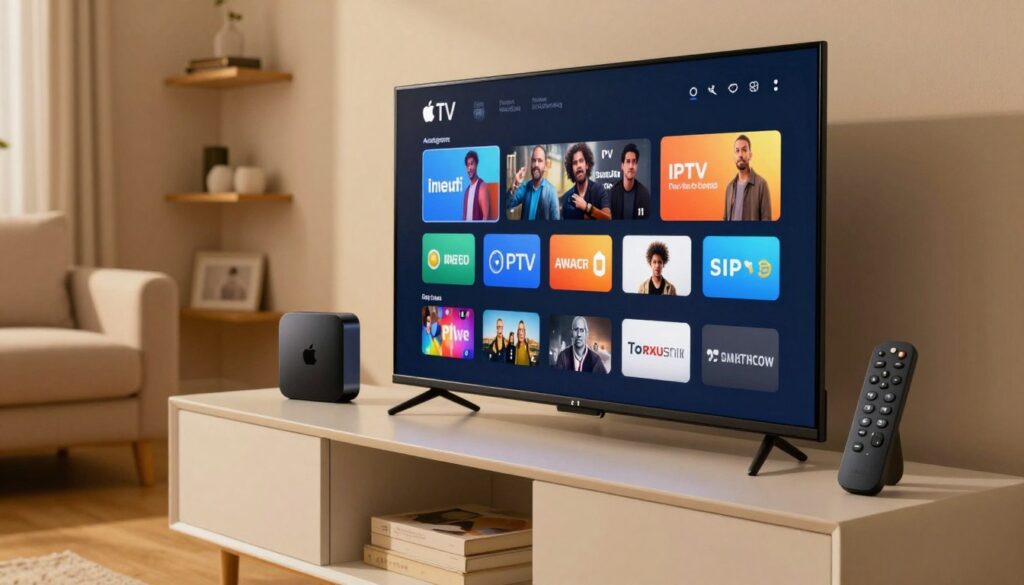
Setting up IPTV on Apple TV is a fantastic way to modernise your home entertainment system. Many viewers in the United Kingdom now prefer this method to access their favourite digital channels with ease.
This guide provides a comprehensive walkthrough to help you configure your device for high-quality streaming. We aim to ensure your hardware is ready for action without any technical stress.
By following these simple steps, you can enjoy a seamless viewing experience. Getting IPTV on Apple TV has never been more straightforward for those who value quality and convenience.
Key Takeaways
- Ensure your internet connection is stable for the best streaming results.
- Choose a reliable application to organise your digital channel lists effectively.
- Always verify your subscription details before you begin the installation process.
- Regularly update your software to maintain optimal performance and security.
- Contact your service provider if you encounter any difficulties during the setup.
Understanding the Basics of IPTV on Apple TV
Exploring the world of internet-based television opens up a vast library of entertainment options for your home. By moving away from traditional satellite or cable signals, you can enjoy a more flexible way to watch your favourite programmes.
What is IPTV and How Does it Work?
IPTV, or Internet Protocol Television, delivers television content over your broadband connection rather than through a standard aerial or dish. This technology converts video signals into data packets that travel across the internet to your device.
When you use IPTV on Apple TV, the application decodes these packets in real-time to provide a smooth viewing experience. This method allows for a massive variety of streaming channels from across the globe, giving you control over what you watch and when you watch it.

Why Choose Apple TV for Your Streaming Needs?
Apple TV stands out as a premier choice for modern households due to its powerful hardware and intuitive software. The device is designed to handle high-definition streams with ease, ensuring that your picture quality remains crisp and consistent.
There are several reasons why enthusiasts prefer this platform for their media consumption:
- Seamless Integration: It works perfectly with the Apple ecosystem, allowing for easy navigation.
- High Performance: The robust processor prevents lag during high-demand streaming sessions.
- User-Friendly Interface: The clean design makes finding your favourite streaming channels simple and fast.
Legal Considerations and Licensing in the United Kingdom
Navigating the digital landscape requires a clear understanding of the rules surrounding content distribution. When looking for a reliable UK streaming guide, it is vital to prioritise services that operate within the law.
The topic of IPTV legal UK compliance is essential for every user to consider. Always ensure that the provider you choose holds the necessary licences to broadcast content in your region.
“Respecting copyright and licensing agreements ensures that creators are supported and that your service remains stable and secure.”
By choosing authorised services, you protect your network from potential security risks and support the long-term health of the digital media industry. Staying informed is the best way to enjoy your content with complete peace of mind.
Preparing Your Apple TV for IPTV Installation
A smooth installation process starts with a few simple checks on your Apple TV. Taking the time to configure your device correctly ensures that your IPTV on Apple TV experience remains enjoyable and free from technical frustration.

Ensuring Your Apple TV Firmware is Up to Date
Before you begin, it is vital to ensure your Apple TV firmware is fully updated to the latest version of tvOS. Running outdated software can lead to compatibility issues with modern streaming applications.
To check for updates, follow these simple steps:
- Navigate to the Settings menu on your home screen.
- Select System and then choose Software Updates.
- Click on Update Software to see if a newer version is available for your device.
Checking Your Internet Connection Stability
We also emphasise the necessity of maintaining consistent internet stability to prevent interruptions during your viewing sessions. High-definition streaming requires a reliable data flow to avoid buffering or sudden drops in quality.
If you notice frequent lag, consider these tips to improve your connection:
- Use an Ethernet cable for a more stable wired connection rather than relying on Wi-Fi.
- Position your router closer to the Apple TV to reduce signal interference.
- Restart your router if you experience persistent connectivity issues.
Creating or Signing into Your Apple ID
Finally, we guide you through the process of verifying your Apple ID credentials, which is a mandatory step for any Apple TV setup. You will need an active account to access the App Store and download the necessary software for your service.
If you do not have an account, you can easily create one through the Apple website or directly on your device during the initial configuration. Always ensure your payment details are current to avoid any delays when downloading your preferred applications.
Selecting the Right IPTV Player for tvOS
Navigating the vast library of apps for your digital media player can feel overwhelming at first. Choosing the correct IPTV player app is essential for a smooth experience, as it acts as the bridge between your service provider and your television screen. A well-optimised application ensures that your tvOS installation remains stable and responsive during daily use.

Criteria for Choosing a Reliable IPTV App
When evaluating potential software, you should prioritise apps that offer a clean, intuitive interface. A cluttered design often leads to frustration when you are trying to find your favourite channels quickly. Look for applications that provide robust codec support, ensuring that high-definition streams play without stuttering or audio desynchronisation.
“The best streaming experience is one where the technology fades into the background, leaving only the content to shine.”
Reliability is another critical factor to consider. You want an app that receives regular updates to maintain compatibility with the latest system software. Always check user reviews to see if the developer is active in addressing bugs or performance issues.
Top-Rated IPTV Players Available on the App Store
Several applications have gained popularity for their performance on Apple hardware. These tools are designed to handle large M3U playlists efficiently while providing a familiar navigation style. Consider the following options for your setup:
- IPTV Smarters: Known for its user-friendly layout and extensive feature set.
- TiviMate: Highly regarded for its customisation options and modern aesthetic.
- GSE Smart IPTV: A versatile choice that supports a wide range of media formats.
Comparing Free Versus Paid IPTV Applications
Deciding between a free or paid version often comes down to your specific requirements for features and support. While free apps are excellent for testing, they may include intrusive advertisements or limited functionality. Paid versions typically offer a more polished experience with advanced features like multi-screen viewing and cloud synchronisation.
| Feature | Free Version | Paid Version |
|---|---|---|
| Advertisements | Frequent | None |
| Advanced Features | Limited | Full Access |
| Customer Support | Community Only | Priority Support |
Ultimately, investing in a premium IPTV player app can significantly enhance your long-term satisfaction. Ensure that your final choice aligns with your technical needs to make the most of your digital media player after the initial tvOS installation is complete.
Step-by-Step Guide to Installing IPTV on Apple TV
Transforming your television into a powerful media hub starts with finding the right tools in the store. Completing your Apple TV setup requires a methodical approach to ensure everything runs smoothly. By following these simple steps, you will master the tvOS installation process in no time.
Navigating to the Apple App Store
To begin, locate the App Store icon on your home screen. It is usually represented by a blue icon with a white ‘A’ symbol. Simply select it using your remote to open the digital marketplace.
Searching for and Downloading Your Chosen Player
Once inside the store, navigate to the search tab at the top of the screen. Type the name of your preferred IPTV player app into the search bar using the on-screen keyboard. Once you find the correct application, select the ‘Get’ or ‘Download’ button to initiate the installation.
Granting Necessary Permissions for Media Playback
After the download finishes, open the application for the first time. You will likely be prompted to allow media playback permissions to ensure the software can access your network and storage. Granting these requests is essential for the app to function correctly and display your streaming channels without any technical delays.
Configuring Your IPTV Service with M3U Playlists
Once your player is installed, the next step is to bring your content to life. Configuring your service requires a clear understanding of how specific data files function to populate your library. By following these steps, you will ensure that your streaming channels appear correctly and load without delay.
Understanding M3U URLs and EPG Links
At the heart of your setup is the M3U playlist, which acts as a digital map for your media. This file contains the addresses for all your available content, allowing the application to fetch video streams directly from your provider.
You will also encounter EPG links, which stand for Electronic Programme Guide. These links provide the schedule information that allows you to see what is currently airing and what is coming up next. Having both correctly configured is essential for a smooth viewing experience.
Inputting Credentials into the IPTV Application
When you open your chosen application, you will be prompted to add a new source. You should enter your provider details with care, as even a small typo can prevent the service from connecting.
Always ensure you are inputting your username, password, and server URL into the secure fields provided by the app interface. Protecting your credentials is vital, so avoid sharing these details with unauthorised third parties or saving them on public devices.
Managing Multiple Playlists and Channel Categories
If you subscribe to more than one service, you can often add several sources to a single player. Effective channel management allows you to group these sources so that your interface remains tidy and easy to navigate.
Most modern applications allow you to create custom categories or hide unwanted content. By taking the time to organise your streaming channels, you can find your favourite programmes in seconds rather than scrolling through endless lists. Proper channel management is the best way to keep your M3U playlist library clean and functional for the whole family.
Optimising Your Streaming Experience
Achieving a smooth and reliable stream is simpler than you might think with the right adjustments. By taking a few moments to configure your application, you can ensure that your high-quality streaming remains consistent throughout the day.
Adjusting Video Quality and Buffer Settings
To maintain a stable connection, it is often necessary to manually adjust your buffer settings based on your current network speed. If you notice frequent pauses, try increasing the buffer size within your player’s advanced menu. This simple change allows your device to pre-load more data, which helps prevent annoying interruptions during live broadcasts.
You should also check the video quality options if your internet connection is currently under strain. Lowering the resolution slightly can often resolve playback issues without significantly impacting your overall enjoyment. Finding the right balance between visual clarity and network stability is key to a frustration-free experience.
Organising Favourites for Quick Access
Managing a large M3U playlist can sometimes feel overwhelming when you are searching for a specific channel. Fortunately, most modern applications allow you to mark your most-watched content as favourites. This ensures that your preferred sports, news, or entertainment channels are always just a click away.
Take the time to curate your list by removing channels you never watch. A clean and organised interface makes navigating your library much faster. You will find that spending five minutes on this task greatly improves your daily routine.
Utilising Parental Controls and Content Filtering
Ensuring a safe viewing environment for all family members is a top priority for many households. Most reliable IPTV players include built-in parental controls that allow you to restrict access to specific categories or channels. You can usually set a PIN code to protect these settings from being changed by younger viewers.
Additionally, content filtering tools help you hide mature or unsuitable material from the main menu. By customising these filters, you can rest easy knowing that your Apple TV remains a family-friendly hub. Taking these precautions provides peace of mind while you enjoy your favourite digital content.
Troubleshooting Common IPTV Issues on Apple TV
Even the most reliable streaming setups can occasionally run into technical hurdles. When your screen goes blank or a stream fails to start, effective troubleshooting IPTV techniques can save your evening. These simple steps often resolve the most common frustrations without needing professional assistance.
Resolving Connection and Loading Errors
If you encounter persistent loading circles, the first step is to verify your network stability. A weak Wi-Fi signal is often the culprit behind interrupted playback. Try restarting your router to refresh the connection, as this frequently clears temporary data bottlenecks.
Sometimes, the issue lies with the service provider rather than your hardware. Check if other applications on your Apple TV are functioning correctly to rule out a total internet outage. If only your streaming app is struggling, the server might be experiencing high traffic or maintenance.
Fixing Audio and Subtitle Synchronisation Problems
Audio and subtitle delays can be incredibly distracting during a gripping film. If you notice the sound is out of sync, try pausing the stream for a few seconds before resuming. This simple action often forces the application to re-align the audio track with the video feed.
For subtitle issues, navigate to the player settings menu to toggle the text off and back on. Ensuring your Apple TV firmware is fully updated also helps, as developers frequently release patches to fix known playback bugs. Consistency in your software is vital for a seamless experience.
When to Clear Cache and Reinstall Applications
When minor fixes fail, it may be time to clear the application cache. Over time, temporary files can accumulate and cause performance degradation. Clearing this data often restores speed and reliability to your interface.
If problems persist, a fresh reinstall is the most effective solution. Deleting the app and downloading it again ensures that all configuration files are clean and up to date. While performing these tasks, always remain mindful of IPTV security by ensuring you only download official applications from the App Store. A clean install is often the best way to maintain both performance and your digital safety.
How to Set Up IPTV on Apple TV Safely and Securely
Keeping your digital footprint safe while enjoying your favourite shows is a top priority for every Apple TV user. Maintaining high standards of IPTV security is paramount when accessing content over the internet to ensure your personal information remains private. By taking a few proactive steps, you can enjoy your media without worrying about potential digital threats.
The Importance of Using a VPN for Privacy
A VPN for streaming acts as a secure tunnel for your internet traffic, masking your IP address from prying eyes. This is particularly useful when you want to keep your viewing habits private from your internet service provider. Encryption ensures that your data remains unreadable to anyone who might try to intercept it during your streaming sessions.
Protecting Your Network from Unauthorised Access
Your home network is the gateway to all your connected devices, so keeping it locked down is essential. You should always ensure your Wi-Fi router uses strong, unique passwords and the latest security protocols. Regularly updating your router firmware helps to patch vulnerabilities that could otherwise allow unauthorised access to your private network.
Avoiding Malicious IPTV Providers and Phishing Links
Not all services are created equal, and it is vital to be cautious about where you source your content. You should always stick to reputable providers to ensure secure IPTV access and avoid falling victim to scams. Be wary of suspicious emails or websites that promise free content, as these are often phishing links designed to steal your personal credentials.
If a deal seems too good to be true, it often is. Always verify the legitimacy of a service before you input any payment details or personal information. By staying vigilant, you can protect your devices and enjoy a worry-free entertainment experience on your Apple TV.
Conclusion
Setting up your Apple TV for media playback transforms your living room into a personal cinema. You now possess the technical knowledge to manage playlists and refine your viewing preferences with ease.
Our comprehensive UK streaming guide provides the foundation for a reliable and high-quality experience. By prioritising network security and choosing reputable applications, you protect your digital footprint while enjoying diverse content.
Regular maintenance of your device ensures that your favourite shows remain accessible at all times. Keep your firmware updated to benefit from the latest performance improvements provided by Apple.
We encourage you to explore the vast range of entertainment options available through your newly configured system. Refer back to this UK streaming guide whenever you need to adjust your settings or add new content sources.
Your feedback helps us improve our future resources for the community. Share your experiences with fellow enthusiasts to help others navigate the world of digital media on their Apple TV devices.
FAQ
Is it legal to use IPTV services on my Apple TV within the United Kingdom?
Using IPTV is perfectly legal in the United Kingdom as long as the service provider holds the necessary licensing requirements for the content they broadcast. When setting up your Apple TV, it is crucial to stay informed about IPTV legal UK standards to ensure you are streaming through authorised and legitimate channels.
What is the first step I should take before installing an IPTV player app?
Before you begin, you must ensure your Apple TV firmware is fully updated to the latest version of tvOS. Additionally, verifying your Apple ID credentials and ensuring a stable internet connection will prevent any interruptions during the tvOS installation process.
How do I choose the best IPTV player from the Apple App Store?
When browsing the Apple App Store, look for top-rated IPTV players that offer robust codec support and a user-friendly interface. You may also want to compare free versus paid IPTV applications to see which features, such as advanced channel management, best suit your viewing habits.
What are M3U URLs and EPG links, and why do I need them?
An M3U URL is a link to the M3U playlist files provided by your service, which tells the app which channels to load. EPG links (Electronic Programme Guide) provide the schedule data for those channels. You will need to input these provider credentials securely into your chosen IPTV player app to populate your channel list.
My stream is buffering; how can I improve the high-quality streaming experience?
To achieve a smoother experience, you can manually adjust video quality and buffer settings within your app’s configuration menu. This is particularly helpful if your internet stability fluctuates. Organising your favourites for quick access can also reduce the time spent navigating menus.
How do I resolve common audio or subtitle synchronisation problems?
If you encounter audio and subtitle synchronisation issues, first try restarting the stream. If the problem persists, troubleshooting IPTV steps include checking for app updates or, in some cases, performing a fresh reinstall of the application to clear cache and reset settings.
Is it necessary to use a VPN for streaming IPTV on Apple TV?
While not mandatory for the technology to work, using a VPN for streaming is highly recommended for IPTV security and online privacy. A VPN helps protect your personal data from unauthorised access and can help you avoid malicious IPTV providers or phishing links.
Can I restrict certain content for other members of my household?
Yes, most Apple TV setup configurations allow you to utilise parental controls and content filtering. This ensures a safe viewing environment by restricting access to specific channel categories based on age ratings or personal preferences.
What should I do if my IPTV app stops loading channels?
First, check your internet connection stability. If the network is fine, verify that your M3U playlist or provider credentials haven’t expired. If you still face connection and loading errors, you may need to re-enter your M3U URLs or contact your service provider to ensure their servers are active.
How do I grant the necessary media playback permissions on tvOS?
When you first open your downloaded IPTV player app, tvOS will typically prompt you to grant media playback permissions. Simply select ‘Allow’ to ensure the app has the rights to stream content and interact with your Apple TV hardware components effectively.