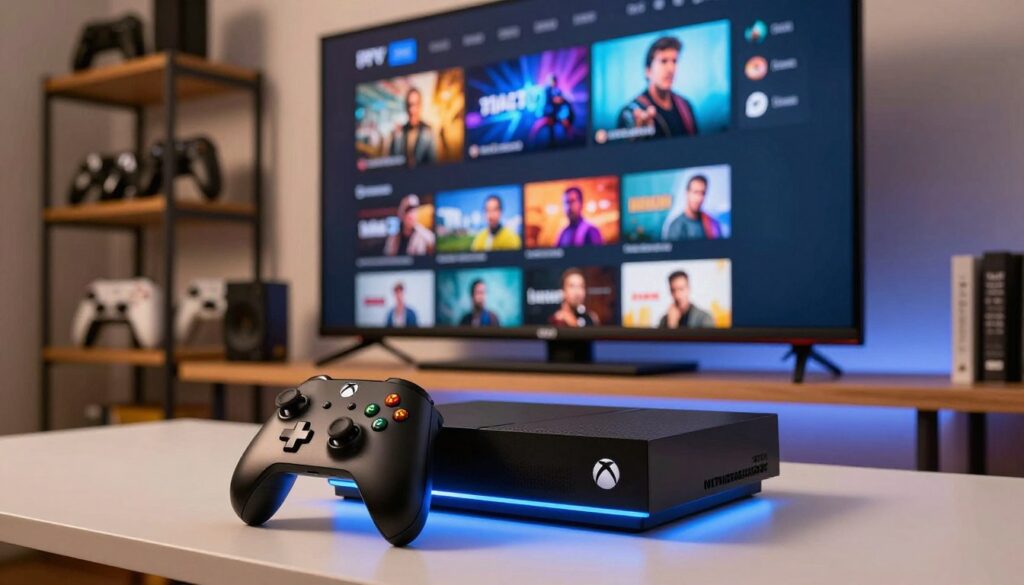
Transforming your gaming console into a versatile media hub is simpler than you might imagine. By choosing to stream UK channels through your existing hardware, you can easily consolidate your entertainment needs into one powerful device.
This comprehensive guide provides a clear path to modernise your viewing habits. We will walk you through the necessary steps to ensure your digital experience remains seamless and high-quality.
Following this IPTV setup guide allows you to enjoy your favourite programmes without needing extra equipment. You will soon discover why this method is the most efficient way to manage your media library at home.
Key Takeaways
- Consolidate your media consumption by using your gaming console as a central hub.
- Learn the most efficient methods to stream UK channels directly to your television.
- Follow a structured process to ensure a smooth and reliable digital installation.
- Maximise the utility of your hardware to enhance your daily entertainment experience.
- Gain full control over your viewing preferences with this simple, step-by-step approach.
Understanding the Compatibility of IPTV on Xbox
Modern Xbox consoles are far more than just gaming machines; they are powerful hubs for digital media streaming. By leveraging the advanced processing power of these devices, you can transform your television into a comprehensive entertainment centre. It is essential to recognise that your console is designed to handle high-definition video content with ease.
When considering the use of IPTV on Xbox, it is helpful to understand how the system interacts with third-party applications. These apps act as a bridge, allowing your console to decode and display live streams directly through your internet connection. Most modern consoles provide a stable environment for this, provided you have a reliable network setup.

Not all hardware generations perform the same way when it comes to digital media streaming. While the newer Series X and Series S consoles offer superior performance and faster loading times, the Xbox One family remains a capable choice for most users. Choosing the right device ensures that your experience remains smooth and free from unnecessary technical hurdles.
To help you determine if your hardware is ready for IPTV on Xbox, we have compiled a quick comparison of the most common console models available in the United Kingdom today.
| Console Model | Streaming Capability | Performance Level |
|---|---|---|
| Xbox Series X | Excellent (4K Ready) | High |
| Xbox Series S | Excellent (1440p) | High |
| Xbox One X | Very Good (4K) | Medium-High |
| Xbox One S | Good (1080p) | Standard |
Essential Requirements Before You Begin
Setting up your console correctly is the first step toward a seamless viewing experience. Taking a few moments to verify your system status helps you avoid common technical hurdles later on. Proper preparation ensures that your device is fully ready to handle new software installations without any unexpected interruptions.

Checking Your Xbox Model and Firmware
Before you start, it is vital to verify that your Xbox firmware is fully updated to the latest version provided by Microsoft. An outdated system can often prevent third-party applications from launching or functioning as intended. You can easily check this by navigating to the system settings menu on your dashboard.
Look for the “System” tab and select “Updates” to see if a new version is available. Keeping your console current ensures that you have the latest security patches and compatibility features. This simple step creates a stable environment for all your media streaming needs.
Ensuring a Stable Internet Connection
A stable internet connection is the backbone of any high-quality streaming setup. Without a consistent flow of data, you may experience frequent buffering or poor video resolution during your favourite programmes. We recommend testing your network speed through the console settings to confirm it meets the minimum requirements for smooth playback.
If you find that your connection is inconsistent, consider the following comparison to help you decide on the best setup for your home:
| Connection Type | Stability | Speed Potential | Best For |
|---|---|---|---|
| Wired Ethernet | Excellent | High | 4K Streaming |
| 5GHz Wi-Fi | Good | Medium-High | HD Streaming |
| 2.4GHz Wi-Fi | Fair | Low-Medium | General Browsing |
Choosing a wired connection whenever possible will provide the most reliable results. By maintaining a stable internet connection and keeping your Xbox firmware up to date, you set yourself up for a trouble-free experience.
Selecting a Reliable IPTV Service Provider
Selecting a reliable service is essential for a smooth and enjoyable viewing session. When you decide to purchase an IPTV subscription, you are essentially choosing the gateway to your home entertainment. Taking the time to research your options now will save you from frustration later.

Evaluating Subscription Plans and Channel Lists
Most providers offer various tiers, so look for one that aligns with your specific viewing habits. It is vital to confirm that the provider offers a robust selection of content, especially if you want to stream UK channels consistently. Check the channel list carefully to ensure your favourite sports, news, and entertainment networks are included.
Many services provide trial periods or monthly plans. We recommend starting with a short-term IPTV subscription to test the quality before committing to a long-term contract. This approach allows you to verify if the stream quality meets your expectations for high-definition viewing.
Verifying Service Reliability and Customer Support
Consistent service uptime is the hallmark of a high-quality provider. You should look for reviews that mention stable connections, as nobody wants their favourite programme to buffer during a crucial moment. Reliable providers often invest in strong server infrastructure to ensure you can stream UK channels without constant interruptions.
Customer support is equally important when technical issues arise. A professional provider will offer multiple ways to get help, such as live chat or email ticketing systems. The following table highlights the key features you should look for when comparing different services:
| Feature | Essential Requirement | Why It Matters |
|---|---|---|
| Channel Variety | Broad UK Coverage | Ensures access to local content. |
| Uptime Guarantee | 99.9% Reliability | Prevents frequent buffering. |
| Support Channels | 24/7 Live Assistance | Resolves technical errors quickly. |
| Trial Availability | Free or Low-Cost | Allows for risk-free testing. |
Preparing Your Xbox Console for Third-Party Applications
Before you can enjoy your favourite media, you must ensure your console is properly configured for third-party installations. Taking these initial steps helps you avoid potential compatibility issues later on. Proper preparation is the key to a seamless experience when you start adding new software to your device.
Navigating the Microsoft Store
The primary hub for all your software needs is the digital storefront on your console. You can easily find Microsoft Store apps by selecting the icon from your main dashboard or the ‘My games & apps’ section. Once inside, use the search function to locate the specific media player you intend to install.
It is important to ensure your console is connected to the internet before you begin this process. If you have trouble finding an application, check that your region settings are correctly configured for the United Kingdom. This ensures that you see all available software compatible with your specific hardware.
Adjusting Privacy and Security Settings
Maintaining your online privacy is a top priority when you start using third-party software. You should navigate to the ‘Settings’ menu, then select ‘Account’ and ‘Privacy & online safety’. From here, you can manage how your data is shared and who can interact with your profile.
Adjusting these settings allows you to control the permissions granted to new applications. By setting these to a secure level, you protect your personal information while still allowing the software to function correctly. Taking control of these settings provides peace of mind while you explore new content.
| Setting Category | Recommended Status | Benefit |
|---|---|---|
| Data Collection | Minimal | Enhanced privacy |
| App Permissions | Custom | Controlled access |
| Online Safety | Adult/Open | Full functionality |
Installing the MyIPTV Player Application
You can easily transform your gaming console into a powerful Xbox media player by adding the right tools. Selecting a reliable application is the most important step to ensure your streaming experience remains smooth and enjoyable.
Searching for the App in the Store
To begin, navigate to the dashboard on your console and select the icon for the store. This portal is home to all official Microsoft Store apps available for your device.
Use the search function located at the top of the screen to type in the name of the player. As you type, the system will suggest relevant results to help you find the correct software quickly.
Completing the Installation Process
Once you have located the application, select it to view the details page. Click the button labelled “Get” or “Install” to begin the process to install IPTV capabilities onto your system.
The download will start automatically, and you can monitor the progress in your “My Games & Apps” section. After the installation finishes, the app will be ready for you to launch and configure for your personal use.
| Feature | MyIPTV Player | Alternative Apps |
|---|---|---|
| Ease of Use | High | Medium |
| Customisation | Excellent | Limited |
| Stability | Very Stable | Variable |
| Setup Time | Fast | Moderate |
Configuring Your M3U Playlist URL
The next phase of your IPTV setup guide involves linking your remote channel list to the player. Without this vital step, the application remains an empty shell, unable to fetch the content you wish to watch.
By correctly adding your M3U playlist, you ensure that your console can communicate effectively with your chosen service provider. This process is the bridge that brings your favourite entertainment directly to your television screen.
Accessing the Settings Menu within the App
To begin, launch the MyIPTV Player on your Xbox console. Once the home screen loads, navigate to the Settings icon, which is typically located in the top right corner of the interface.
Within this menu, you will find various configuration options. Look specifically for the section labelled Remote Channel Lists. This is where you will manage your streaming sources and ensure everything is correctly synchronised.
“A well-configured stream is the foundation of a seamless viewing experience, ensuring that your favourite programmes are always just a click away.”
Inputting Your Remote Channel List Details
Now that you are in the correct menu, you must add your specific details to complete the IPTV setup guide requirements. Follow these steps to ensure your data is entered without any errors:
- Select the option to Add New Playlist.
- Enter a recognisable name for your service provider in the designated field.
- Carefully type or paste your M3U playlist URL into the remote source box.
- Verify that there are no trailing spaces or hidden characters that could cause a syntax error.
Once you have entered the information, click the Add Remote List button to save your changes. The application will then attempt to fetch your channel data, which may take a few moments depending on the size of your list.
Managing Channels and EPG Settings
Managing your channel list effectively transforms how you interact with your media library. By taking a few moments to customise your interface, you ensure that your most-watched content is always just a click away. This level of control is vital when you want to stream UK channels without the hassle of scrolling through endless lists.
Organising Your Favourite UK Channels
Most modern IPTV players allow you to create a dedicated folder for your preferred content. You should look for the ‘Favourites’ or ‘Star’ icon next to your most-watched networks. Adding channels to this list significantly improves your daily navigation speed.
If your list is particularly long, consider grouping them by genre or region. This simple organisational step makes it much easier to find specific programmes during peak viewing hours. Keeping your interface tidy ensures that you spend less time searching and more time enjoying your favourite shows.
Syncing the Electronic Programme Guide
Correct EPG settings are essential for keeping track of what is currently airing. Without a synced guide, you might miss the start of a live event or a popular series. Most applications require you to input a specific XML or GZ link to populate the schedule data correctly.
Once you have entered the correct URL, ensure you trigger a manual refresh to pull the latest data. A well-synced guide provides a clear overview of upcoming broadcasts, allowing you to plan your evening viewing with confidence. If the data appears blank, double-check your source link for any typos or expired credentials.
| Feature | Benefit | User Impact |
|---|---|---|
| Favourite Lists | Quick Access | High Efficiency |
| EPG Syncing | Live Schedules | Better Planning |
| Category Sorting | Clean Interface | Improved Navigation |
Alternative Methods for Streaming IPTV on Xbox
If you find that standard applications do not meet your needs, there are several alternative methods for streaming IPTV on Xbox. While dedicated software is often the most convenient choice, exploring different avenues can provide greater flexibility for your digital media streaming requirements.
Using the Microsoft Edge Browser
Your console comes equipped with the Microsoft Edge browser, which is surprisingly capable of handling web-based content. Many service providers offer web portals that allow you to log in and watch live television directly through a browser interface.
Simply navigate to your provider’s web portal URL within the browser. This method is an excellent backup solution if you encounter issues with a specific application or if you prefer not to install additional software on your system.
Exploring Other Compatible Media Players
Beyond the most popular choices, the Microsoft Store hosts various third-party tools that function as a versatile Xbox media player. These applications often support different file formats and playlist structures, allowing you to customise your viewing experience.
When searching for these tools, look for software that supports M3U playlists or EPG integration. Testing different players can help you find an interface that feels more intuitive for your daily digital media streaming habits.
| Method | Ease of Use | Customisation | Best For |
|---|---|---|---|
| Dedicated Apps | High | Medium | Daily Viewing |
| Edge Browser | Medium | Low | Quick Access |
| Alternative Players | Medium | High | Advanced Users |
Optimising Your Network Connection for Smooth Streaming
Optimising your internet performance is the secret to unlocking a truly smooth streaming experience on your console. When you prioritise your streaming quality, you ensure that every frame of your favourite content arrives crisp and clear. Maintaining a stable internet connection is the foundation upon which all high-quality digital entertainment is built.
Utilising Wired Ethernet Connections
While Wi-Fi offers convenience, it often suffers from interference caused by walls, other household devices, or distance from the router. A wired Ethernet connection provides a direct, physical link that significantly reduces packet loss. This method is widely considered the gold standard for anyone serious about consistent performance.
By plugging an Ethernet cable directly into your console, you bypass the common fluctuations associated with wireless signals. This simple change often results in a much more reliable data transfer rate. You will notice fewer drops in resolution and a more consistent frame rate during live broadcasts.
Reducing Latency and Buffering Issues
To achieve a truly buffer-free streaming experience, you should also look closely at your Xbox network settings. Adjusting these configurations can help your console communicate more efficiently with your service provider. Even during peak usage times, these small tweaks can make a massive difference in how your media loads.
Consider these essential steps to keep your connection running at its best:
- Restart your router regularly to clear out temporary cache files that may slow down traffic.
- Check your NAT type within the network settings; an ‘Open’ NAT type is ideal for the best connectivity.
- Limit the number of other devices using high bandwidth, such as gaming PCs or tablets, while you are watching.
- Use a quality Cat6 Ethernet cable to ensure your hardware supports the fastest possible speeds.
By taking these proactive measures, you effectively minimise latency and prevent the dreaded spinning wheel of death. A well-tuned network ensures that your entertainment remains uninterrupted and enjoyable throughout the day.
Troubleshooting Common Playback Issues
Effective IPTV troubleshooting is a vital skill for any user looking to maintain a seamless viewing experience. Even with a robust setup, you may occasionally encounter minor technical glitches that disrupt your favourite programmes. Understanding how to address these issues quickly ensures that your entertainment remains uninterrupted.
Resolving Authentication Errors
One of the most frequent hurdles users face involves IPTV authentication failures. This usually occurs when the application cannot verify your playlist credentials or when the M3U link has expired. Always double-check that your URL is entered correctly without any hidden spaces or typos.
If the error persists, try refreshing your playlist within the app settings. Sometimes, a simple re-entry of your login details is all that is required to restore access. Ensure your subscription is still active, as providers often disable access once a billing period concludes.
Fixing Stream Loading Failures
When a channel fails to load, the issue often stems from temporary network fluctuations or server-side maintenance. To maintain high streaming quality, start by checking your internet connection speed. A stable, wired connection is significantly more reliable than a wireless one for high-definition content.
Technology is best when it brings people together and provides a reliable window into the world of digital entertainment.
Anonymous
If the stream still refuses to play, try clearing the cache of your media player or restarting your Xbox console. This clears out temporary data that might be causing a conflict. You can refer to the table below for a quick summary of common issues and their potential fixes.
| Issue Type | Common Cause | Recommended Fix |
|---|---|---|
| Authentication Error | Invalid M3U URL | Verify and re-input link |
| Loading Failure | Network Latency | Restart router or console |
| Buffering Issues | Low Bandwidth | Use wired Ethernet |
| Channel Offline | Server Maintenance | Wait or contact provider |
Staying Safe and Legal While Using IPTV Services
Keeping your streaming habits within the boundaries of the law is essential for every user in the United Kingdom. Prioritising legal IPTV usage ensures that your entertainment remains both high-quality and sustainable in the long term. By choosing reputable platforms, you support content creators while avoiding the risks associated with unauthorised streams.
Understanding Copyright Regulations in the United Kingdom
It is vital to remain aware of the legal landscape regarding digital media. UK copyright laws are designed to protect the intellectual property of broadcasters and production studios. When you access content through official channels, you are helping to uphold these standards.
To ensure you remain compliant, consider these simple guidelines:
- Always verify that your service provider holds the necessary broadcasting licences.
- Avoid platforms that offer premium content for free or at suspiciously low prices.
- Check official websites for lists of authorised distributors in your region.
Protecting Your Privacy Online
Beyond legal compliance, maintaining your online privacy is a critical step when using third-party applications on your console. Many apps collect data, so being proactive about your digital footprint is a smart move. You can take several practical steps to keep your personal information secure while you enjoy your media.
Consider these best practices for a safer experience:
- Review the privacy settings on your Xbox console regularly.
- Use a reputable VPN service if you want to add an extra layer of encryption to your connection.
- Be cautious about granting unnecessary permissions to third-party software.
Staying informed about these topics helps you enjoy your media consumption safely and responsibly. By taking these precautions, you can focus on what matters most: enjoying your favourite shows and films without any unnecessary worry.
Conclusion
Setting up your Xbox console for streaming media opens up a world of possibilities for your home entertainment system. You now possess the tools to manage your digital content with precision and ease.
Your gaming device serves as a powerful hub for all your favourite UK channels and programmes. Taking control of your viewing habits ensures that you get the best performance from your hardware every single day.
Keep your software updated to maintain a smooth experience across your Microsoft console. Regular checks on your network settings will keep your streams clear and free from interruptions.
We invite you to explore the vast library of content available through your new setup. Share your experiences with friends or family who might want to upgrade their own home cinema systems.
Your feedback helps us improve the quality of our guides for the entire community. Enjoy the freedom of a personalised viewing experience tailored to your specific interests on your Xbox.
FAQ
Which Xbox consoles are compatible with IPTV applications?
Most modern consoles, including the Xbox Series X, Xbox Series S, and Xbox One, are perfectly suited for digital media streaming. These devices have the processing power to handle high-definition content smoothly, though we recommend ensuring your Microsoft firmware is updated to the latest version for the best performance.
What is the best application to use for IPTV on an Xbox?
While there are several options in the Microsoft Store, the MyIPTV Player is a highly popular and reliable choice for many users. It offers a clean interface that makes it easy to organise your favourite UK channels and manage your streaming library effectively.
How do I link my subscription to the MyIPTV Player app?
Once you have installed the app, you simply need to navigate to the settings menu and input your M3U playlist URL provided by your service provider. This remote channel list connects the application to your specific subscription so you can start watching programmes immediately.
Can I see a schedule of upcoming television programmes?
Yes, absolutely. By syncing the Electronic Programme Guide (EPG) within your chosen app, you can view real-time listings for all your channels. This ensures you can easily navigate your content and never miss your favourite British television shows.
Why is my IPTV stream buffering or lagging on my Xbox?
Buffering is often caused by a fluctuating wireless signal. To optimise your network connection, we strongly suggest using a wired Ethernet connection. This provides a more stable data transfer rate, significantly reducing latency and ensuring a seamless viewing experience.
What should I do if I encounter an authentication error?
If you face authentication errors, first double-check that your M3U playlist URL was entered correctly without any typos. If the issue persists, it may be a server-side update from your provider, so reaching out to their customer support team is the best next step for IPTV troubleshooting.
Is it possible to stream IPTV without downloading a specific app?
Yes, you can use the built-in Microsoft Edge browser on your Xbox to access various web-based streaming portals. While a dedicated app like MyIPTV Player usually offers a more tailored experience, the browser is a great alternative method for accessing digital media.
Is using IPTV services on my console legal in the United Kingdom?
Using IPTV technology itself is perfectly legal; however, it is vital to ensure you are using legitimate service providers that adhere to UK copyright regulations. Always choose reputable providers to stay safe and enjoy your media responsibly.
Do I need to change any console settings before I start?
It is a good idea to review your privacy and security settings in the Xbox menu. Ensuring your console is configured to allow third-party applications from the Microsoft Store will prevent any installation blocks and help protect your online privacy while streaming.
How do I find the MyIPTV Player in the store?
Simply navigate to the Microsoft Store on your Xbox dashboard and use the search function to type in “MyIPTV Player”. Once the app appears, select it and click ‘Install’ to add it to your console’s library.